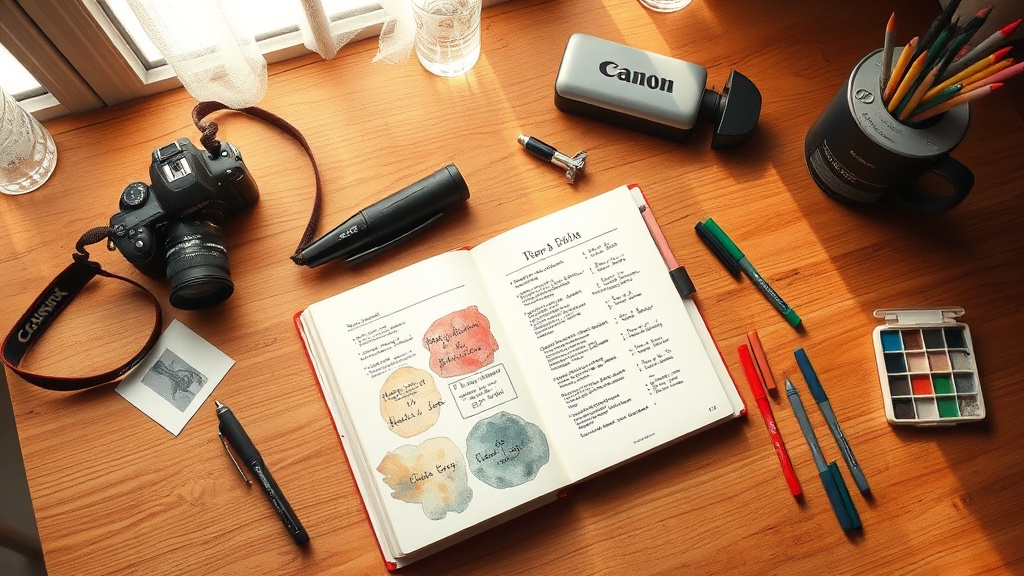
How to Blend Digital Tools with Your Art Journal: A Step‑by‑Step Guide

How to Blend Digital Tools with Your Art Journal: A Step‑by‑Step Guide
Ever felt torn between the tactile joy of a mixed‑media journal and the endless possibilities of digital sketching? You’re not alone. In this guide I’ll show you how to combine the best of both worlds so your pages stay vibrant, organized, and ready for the future.
Why Combine Digital and Physical Journaling?
Mixing digital tools with a traditional art journal lets you:
- Capture ideas on the go with a phone or tablet.
- Experiment with colors, layers, and textures without waste.
- Archive and revisit past pages instantly.
- Share your spreads on social media without re‑photographing.
But the magic happens when you integrate these practices, not just keep them separate. Below is the workflow I use daily, plus tips I’ve learned from creating texture with gesso and collaging with junk mail.
What You’ll Need
- A sturdy mixed‑media journal (any size you love).
- A digital sketching app – I recommend Morpholio Journal for its hybrid feel, or Adobe Fresco for brush realism.
- A tablet or phone with a stylus (Apple Pencil, Wacom, or any pressure‑sensitive pen).
- A scanner or high‑quality camera (your phone works).
- Basic supplies: pens, watercolors, collage bits, glue.
Step 1: Set Up a Digital “Inbox” for Quick Captures
Open your chosen app and create a folder called “Inbox”. Whenever inspiration strikes—whether you’re on a bus, in a coffee shop, or lying in bed—open the app, sketch a thumbnail, jot a phrase, or photograph a texture. This keeps ideas from slipping away while you’re away from your physical journal.
Step 2: Transfer Your Digital Sketches to Paper
At the end of each week, export the “Inbox” folder as a PDF or a series of PNGs. Print them on a recycled paper sheet, then tape or glue the prints onto a fresh journal page. This “print‑and‑paste” method gives you the flexibility of digital iteration with the tactile joy of collaging.
Step 3: Use Digital Layers to Plan Complex Layouts
Before you commit paint or collage, sketch the layout in your app using layers. Treat each layer as a “what‑if”—move elements, test color combos, and try different textures. When you’re happy, take a screenshot of the final layer stack and print it as a light‑box trace for your paper page.
Step 4: Blend Physical Media Directly onto the Printed Sketch
Now comes the messy fun. Using the printed digital layout as a guide, apply watercolors, inks, or collage bits. Because the print is only a light guide, you can still let the page evolve organically. If you’re feeling daring, try the paper‑towel texture trick for instant depth.
Step 5: Archive and Share Your Hybrid Pages
Once a page is complete, scan it at 300 dpi (or photograph it with a DSLR). Save the image in a cloud folder organized by month. Add tags like “digital‑hybrid” and “texture” so you can quickly find it later. Then share a cropped teaser on Instagram with the hashtag #ArtJournalHybrid.
Pro Tips for a Seamless Workflow
- Use a consistent file‑naming system. I name files
2026-03-17_JournalHybrid_01.pngso they sort chronologically. - Back up your digital inbox daily. A quick iCloud or Google Drive sync prevents loss.
- Experiment with mixed‑media brushes. In Adobe Fresco, the Watercolor brush mimics real pigment, letting you preview how the paint will behave before you even open the journal.
Common Mistakes & How to Fix Them
- Over‑relying on digital prints. If you print every sketch, the journal can feel stiff. Keep a balance: 70 % paper‑first, 30 % digital‑assist.
- Ignoring resolution. Low‑res screenshots look blurry when printed. Always export at 300 dpi or higher.
- Forgetting to annotate. Add a short note in the margin about the app used or the brush settings—future you will thank you.
Wrap‑Up: Your Hybrid Journal Awaits
Blending digital tools with your art journal isn’t about replacing the messy, beautiful process—it’s about giving yourself more room to experiment, organize, and share. Try the workflow this week, and you’ll see how the “best of both worlds” can keep your pages fresh, vibrant, and perfectly you.
Related Reading
- Forget Color Theory: How I Pick Colors by Feeling — Learn a feeling‑first approach that works great with digital swatches.
- Weeknight Art Journal Rescue Kit — Quick fixes for pages that go sideways.
- Spring Refresh: Minimalism in Your Journal — A minimalist mindset pairs nicely with clean digital layouts.