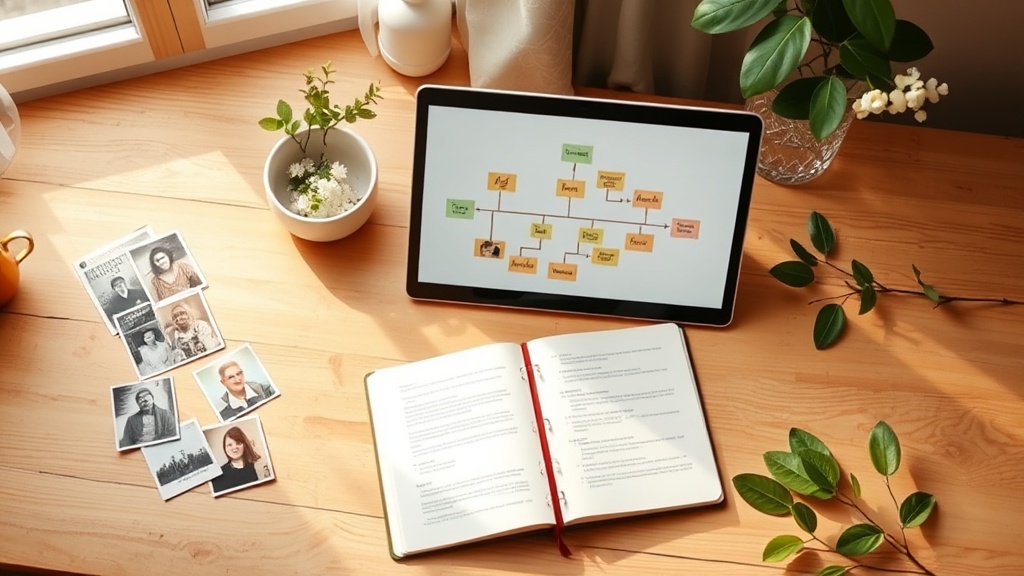
Spring Clean Your Family Tree: A Step‑by‑Step Guide to Organizing Digital Genealogy Records

Spring Clean Your Family Tree: A Step‑by‑Step Guide to Organizing Digital Genealogy Records
Hook:
Ever stare at a chaotic folder of PDFs, JPEGs, and .ged files and wonder why your family history feels more like a mystery than a story? Spring is the perfect time to sweep away the digital dust and give your ancestry archive the tidy makeover it deserves.
Context:
With genealogy websites booming—thanks to a recent New York Times feature on the surge of online family‑research—more people are digging into their roots than ever before. But while the excitement of uncovering a great‑grandparent’s birth certificate is thrilling, the sheer volume of files can quickly become overwhelming. This guide walks you through a practical, privacy‑first workflow to back up, tag, and share your digital family tree so you can explore your past without the digital clutter.
Why Does a Digital Genealogy Spring Clean Matter?
Spring cleaning isn’t just for closets. A well‑organized genealogy archive saves you hours of hunting for that one missing marriage record, protects sensitive data from accidental leaks, and makes it easy to share stories with relatives—both near and far.
How Do I Start a Safe Backup of My Genealogy Files?
1. What Should I Back Up First?
- Primary source documents: Scans of birth, marriage, death certificates, census records, and military drafts.
- Research files: PDFs from Ancestry.com, FamilySearch.org, or MyHeritage.
- Family‑tree exports: GEDCOM files (
.ged) from your favorite tree‑building software. - Multimedia: Audio recordings, scanned letters, and old family photos.
Pro tip: Store each file type in its own top‑level folder (e.g.,
Certificates/,Research PDFs/,GEDCOM/,Media/). This mirrors the physical filing‑cabinet method we love in our art journals.
2. Which Backup Strategy Is Most Reliable?
| Backup Option | What It Covers | How Often | Cost |
|---|---|---|---|
| External SSD (2 TB) | All local files, fast restore | Weekly | $120 |
| Cloud storage (Google Drive, Dropbox, OneDrive) | Off‑site, automatic sync | Real‑time | $9.99/mo (15 GB free) |
| Specialized genealogy cloud (Ancestry, MyHeritage) | Direct access to research records | Real‑time | Included with subscription |
Recommendation: Use a 2‑step approach—local SSD for quick recovery + cloud for disaster protection. This mirrors the redundancy we use when backing up our art‑journal scans.
How Can I Tag and Organize My Files for Easy Retrieval?
3. What Naming Conventions Keep My Archive Searchable?
[Year]_[Surname]_[DocumentType]_[Location]_[Notes].ext
Example: 1892_Smith_BirthCertificate_NewYork_CornwallCounty.pdf
- Year — Helps sort chronologically.
- Surname — Keeps related records together.
- DocumentType — Quickly spot certificates vs. census.
- Location — Useful for regional research.
- Notes — Any extra identifier (e.g., “original” vs. “copy”).
4. Which Metadata Tags Should I Add?
If your cloud service supports custom tags, apply these universal tags:
#familytree— All genealogy items.#privacy‑sensitive— Records containing SSNs, addresses, or health info.#public‑share— Files you’re comfortable sending to relatives.#needs‑review— Items that still need verification.
You can filter by tag in Google Drive, Dropbox, or even in a simple file‑explorer search.
How Do I Ensure My Family History Stays Private?
5. What Privacy Settings Should I Enable?
- Cloud folders: Set the top‑level genealogy folder to “Only me.” Share sub‑folders with specific family members via invitation links.
- GEDCOM files: Remove personal identifiers (full birth dates, addresses) before sharing publicly.
- Metadata: Strip EXIF data from scanned photos using tools like ExifTool (
exiftool -All= file.jpg).
Pro tip: When you export a GEDCOM from a program, choose the “Remove private data” option if available.
6. How Can I Share Safely with Relatives?
Create a read‑only shared folder (e.g., FamilyTree/Shared/) and drop only the files you want them to see. Use a password‑protected zip for extra security, and send the password via a separate channel (email vs. text).
How Do I Keep My Digital Tree Up‑To‑Date After the Clean?
7. What Routine Keeps My Archive Fresh?
- Weekly: Add new research PDFs to the appropriate folder and tag them.
- Monthly: Run a quick duplicate‑file scan (Free tools: dupeGuru, CCleaner) to catch accidental copies.
- Quarterly: Export a fresh GEDCOM from your genealogy software and back it up to both SSD and cloud.
8. How Can I Sync Across Devices?
Most genealogy apps (Ancestry, MyHeritage) let you sync GEDCOM files via their desktop clients. Pair this with a folder‑sync tool like Syncthing or Resilio Sync to keep your local SSD and laptop in lockstep.
Takeaway
A tidy digital genealogy archive is a living, breathing part of your family story—just like an art journal that evolves with each page you turn. By backing up safely, naming files consistently, tagging for quick retrieval, and protecting privacy, you’ll spend less time hunting for that elusive 1920s census and more time connecting with the people behind the records.
Next step: Grab an external SSD, set up a cloud folder, and start naming those PDFs with the simple convention above. Your ancestors will thank you for the clean‑cut respect.
Related Reading
- Spring Minimalism: 5 Simple Steps to Declutter Your Art Journal — A parallel guide on decluttering physical creative spaces.
- How to Blend Digital Tools with Your Art Journal: A Step‑by‑Step Guide — Learn how digital workflows can enhance your creative practice, just like a tidy genealogy archive.
- Spring Clean Your Workflow: 5 Steps to Refresh Editorial Calendar — Apply the same spring‑clean mindset to your content planning.
Meta FAQs (JSON‑LD)
{
  "meta": {
    "faqs": [
      {
        "question": "What is the best way to back up genealogy files?",
        "answer": "Use a 2‑step backup: a local external SSD for quick restores and a cloud storage service (Google Drive, Dropbox) for off‑site protection."
      },
      {
        "question": "How should I name my genealogy PDFs for easy searching?",
        "answer": "Use the format [Year]_[Surname]_[DocumentType]_[Location]_[Notes].ext, e.g., 1892_Smith_BirthCertificate_NewYork.pdf."
      },
      {
        "question": "How can I keep my family‑history data private when sharing with relatives?",
        "answer": "Set your cloud folder to private, share sub‑folders via invitation links, strip EXIF data from scans, and use password‑protected zip files for sensitive documents."
      }
    ]
  }
}